By default OnePlaceMail will automatically capture email attributes (To, From, Subject etc.) and populate associated SharePoint columns.
The OnePlaceMail Email Library Template (in SharePoint) & OnePlaceMail Email Content Type are pre-configured to have columns of the correct name to facilitate the automatic upload of the email properties.
Mapping email properties to your own columns in SharePoint can be achieved by using a Central Column Mapping list.
1. Select a SharePoint site on which to create the Central Column Mapping list. All OnePlaceMail users must have access to read the Central Column Mapping list so keep this in mind when selecting a site to host the list.
2. In Internet Explorer navigate to the site to create the list on.
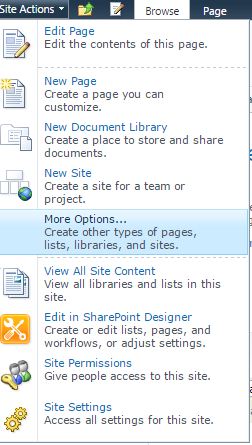
SharePoint 2010 : Click Site Actions > More options… > Lists
SharePoint 2013: Site Contents, add an App
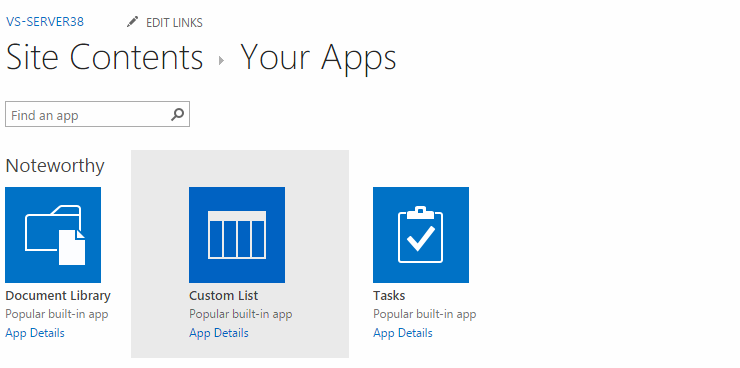
3. Create a new Custom List
4. Specify a Name for the list (you can give the list any name you choose) and click Create
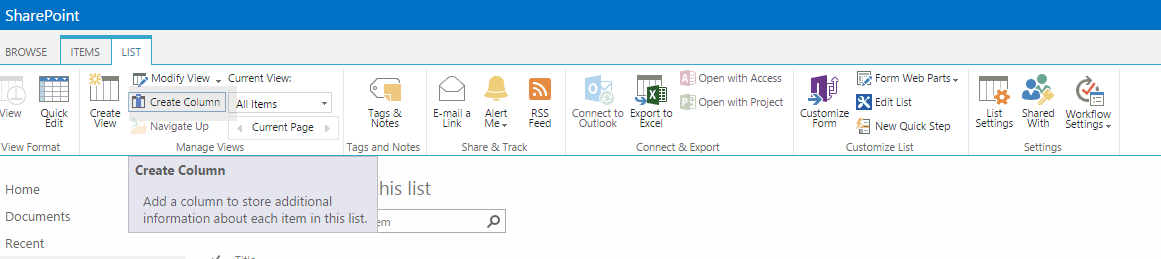
5. Add a new column to the list by selecting List > Create Column
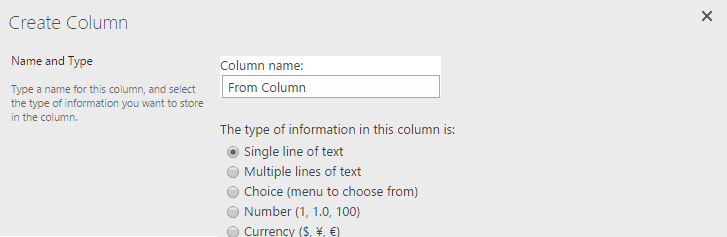
6. Specify the column name as From Column. It is important to use this exact column name and case is important, make sure From starts with a capital F and Column with capital C.
7. Change Require that this column contains information to Yes
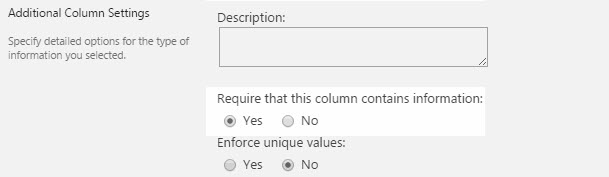
8. Leave all other column settings as
default, and click OK to create the column
9. Add a new column to the list by selecting Settings > Create Column
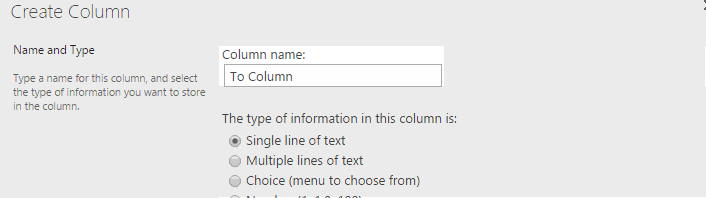
10. Specify the column name as To Column. It is important to use the exact column name and case, make sure To starts with a capital T and Column with capital C.
11. Change Require that this column contains information to Yes
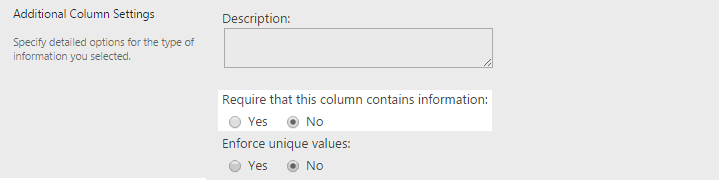
12. Leave all other column settings as default, and click OK to create the column
13. Open the list settings by clickingList > List Settings
14. Click on the Title column to edit

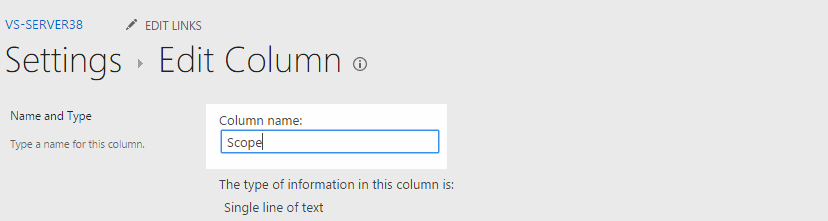
15. Change the column name from Title to Scope
16. Take note of the URL to the list, as we need to add
this URL within the OnePlaceMail 
|
Property |
Mandatory / Optional |
Description |
|
Scope |
Mandatory |
This must be set to "Global" |
|
Column |
Mandatory |
This is the reserved OnePlaceMail column names that match the email property. Valid values are: EmSubject EmTo EmToAddress EmCC EmBCC EmFrom EmFromName EmDateSent EmDateReceived EmType (derived based on user filing) EmDate (derived based on EmType) EmID EmAttachCount EmAttachmentNames EmCon EmConversationID EmConversationIndex EmCategory EmBody EmSensitivity EmImportance EmToSMTPAddress EmCCSMTPAddress EmBCCSMTPAddress EmFromSMTPAddress EmHasAttachments EmSentOnBehalfOfName EmReceivedOnBehalfOfName EmCompanies EmRetentionPolicyName EmReplyRecipientNames EmReplyRecipients |
|
To Column |
Mandatory |
This is the internal name of the column you want the email property to be stored in |
The image below shows a Column Mapping list configured with example mappings .
The client must be set to configured to use the column mapping list
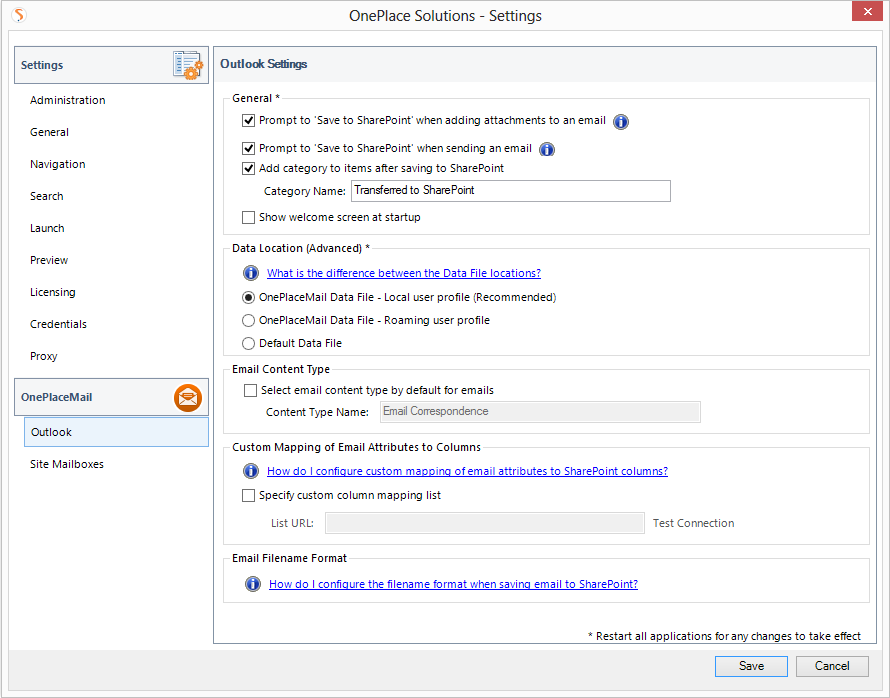
Custom mapping of email attributes to columns – client settings
The custom column mapping setting can be deployed via configuration update setting
|
Property |
Mandatory / Optional |
Description |
|
action |
Mandatory |
Set to "insert" to change the default behavior Set to "delete" to revert to default behavior |
|
useColumnMappingUrl |
Mandatory |
Valid values: "true" or "false" |
|
listUrl |
Optional |
If useColumnMappingUrl ="true", determines the URL of the column mapping list in SharePoint. Example: http://portal/OPM1/Lists/OnePlaceMail%20Column%20Mapping |
|
enabled |
Optional |
This setting allows you to control if users have the ability to change the Custom Mapping configuration. Valid values: "true or "false" (default is true) |
<?xml version="1.0" encoding="UTF-8"?>
<configuration>
    <columnMapping action="delete"/>
    <columnMapping action="insert" useColumnMappingUrl="true" listUrl="http://portal86/sites/sitecol2/lists/columnmappinglist" enabled="false"/>
</configuration>


<?xml version="1.0" encoding="UTF-8"?>
<configuration>
    <columnMapping action="delete"/>
    <columnMapping action="insert" useColumnMappingUrl="true" listUrl="http://portal86/sites/sitecol2/lists/columnmappinglist" enabled="true"/>
</configuration>