
Central Register (location item)
The Central Register (location item) provides the ability to define a central register describing one or more locations. The central register list can be referenced, refined and queried, in order to present relevant locations (from SharePoint/Office 365) to end users within client applications using OnePlaceMail and OnePlaceDocs.
A central register may be a list, or a library with document sets in SharePoint
Locations may include site collections, sites, libraries, lists, folders and document sets.
Create a mew Central Register Item
For the selected Solution Profile:
- Select 'New Item...
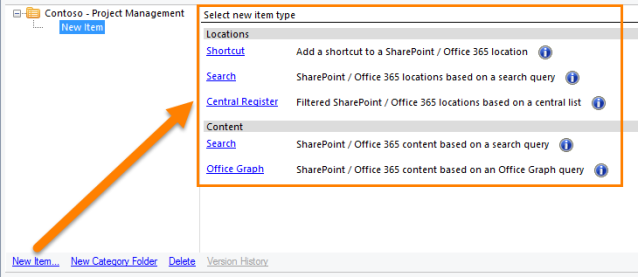
- Choose 'Central Register' from the new item type
- Complete the Central Register Item form
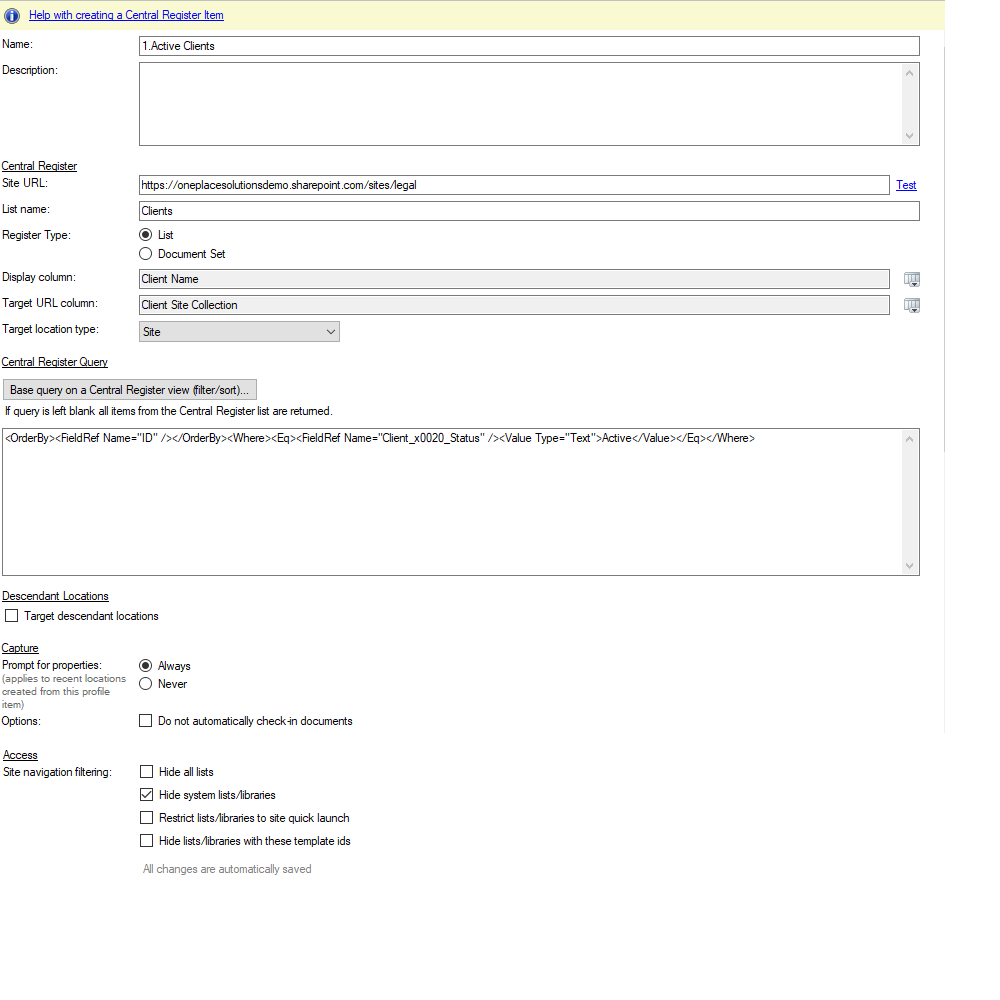
| Name | This is the name of the folder as it will appear under the Solution Profile within the navigation tree |
| Description | The description allows you to provide some further detail and purpose of the location. This is not currently displayed to the end user. |
| Central Register | |
| Site URL | Enter the URL of the site containing the central register list |
| List name | Enter the name of the central register list |
| Display column | User the picker to select a column to display to the end user |
| Target URL column | Each Central Register list requires a column containing a URL to the location a list item is describing. Select the column in the list performing providing this URL link. |
| Target location type |
In most instances, a central register list will be describing locations of a consistent type. i.e. all URL column links will be linking to Sites or all URL column links will be linking to Document Sets. Select the target location type the URL is link to. If the central register list contain URL links to a mixed set of target locations, select 'Mixed'. |
| Location type column | If the 'Mixed' option is selected for Target Location type, a column must be created in the central register list describing the URL destination target location type. |
| Central Register Query | |
|
Select the button: 'Base query on a Central Register view (filter/sort)' to select a view from the Central Register list. This will extract the CAML query from the view and place it into the query box. The extracted CAML query is not connected to any subsequent updates in the view. It is recommended you use the button to extract the CAML query. However, there are some query constructs not available via a view definition. Therefore, you can enter a CAML query in the text box directly. |
|
| CAML Query |
You can write your own CAML query against the Central Register List of modify the CAML query exported from a selected view when the 'Base query on a Central Register view (filter/sort)' button is used. For example: Writing you own CAML query allows you to construct queries such as where the current user is a member of a SharePoint/Active directory group. This is powerful when implementing personalization of locations to present for the current user. |
| Descendant Locations | |
| Add / Delete Selected |
You can add/ remove one or more Descendant locations. This is useful when you know the location being returned by your query. For example: In a Project Management or Legal Matter System, you may have a SharePoint site/project, with each site containing: a document library, correspondence library, Events list, task list. With this known structure, the Central Register list items may provide a URL link to project (site) and the descendant location can define the locations: document library, correspondence library, Events list, task list.
Perform the above, remove the noise of other site artifacts such as Assets library and any other unwanted libraries/lists in the site. It also means the central register list only need one entry for the project/matter site as apposed to an entry for each of the specific libraries/lists within the site. |
| Display name | This is the name of the location (it can be different to what the location is called in SharePoint) |
| Relative URL |
This is the additional URL path for the descendant location. For a site with a two libraries called: Document Library and Correspondence Library and a list called: Calendar, you could create three descendant locations with the Relative URL's of:
Note: for lists you need to prefix the list name with 'Lists' path These URL's are relative to the URL location of the items returned from the central register list query. Descendent locations are not restricted to the immediate locations in the top level site. For example, in the event of site collections being the target URL returned by the central register, provide a path to a sub-site and library within a sub-site. |
| Location Type | This is the type location the descendant URL will be referencing. This is important to set correctly. If the final destination is a library, select library. If it's a Site, select site, etc.. |
| Capture | |
|
Apply Capture options:
|
|
| Access | |
| Site navigation filtering options allow the removal of SharePoint libraries/lists from the navigation tree |