
Creating a central register list
The Central Register item references a list in SharePoint describing one or more locations.
A central register is a list or library, with document sets in SharePoint, with one or more columns to help describe a location in SharePoint/Office 365.
The columns may be of different columns types (e.g. Text, Number, Lookup, Managed Metadata, People/Groups,). Typically a list would be focused on a particular business system such as Project Management, Legal Matter Management, Helpdesk, and contain one or more items for each project, matter or helpdesk case respectively.
Example: A Project Management System may have columns such as:
Project name, Project description, Project Budget, Project Status, Project Owner, Project Team members, etc... The columns in the list will depend on the system and business requirements.
Required Column/s in the Central Register List
The list must contain a column of type Text or URL for entering a URL to the destination location.
If the URL links are referencing locations in SharePoint of mixed types (for example a mixture of: site collections, sites, libraries, lists, Folder, documents sets) then use a Text column type. The valid values for this column are (must be exact): Site, SiteCollection, Library, List, DocumenetSet, ListFolder, LibraryFolder.
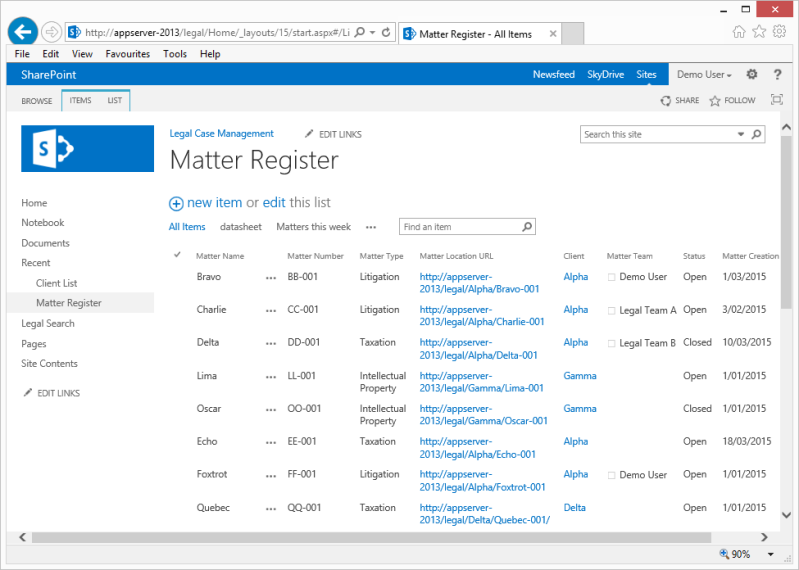
The example central register list below is for a Legal Matter Management System. The list contains a number of columns describing different legal matters, including a column called Matter Location URL. This column contains URL's to the Matter location. In this example, all matter are represented consistently, as SharePoint Sites. Therefore, there is no need for a second column to describe what the Location URL is pointing towards.
You can create one or more views in the Central Register, ready for selection when create a central register item.