Send and Save Emails to Microsoft 365
Save emails to Microsoft 365 and SharePoint Online when composing or replying to emails. Set a Microsoft 365 filing location to save to and you are all good to go!
Send and Save
An email can be sent to recipient(s) and saved to SharePoint when composing or replying to an email.
-
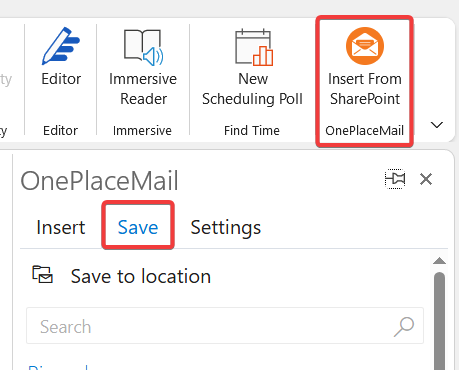
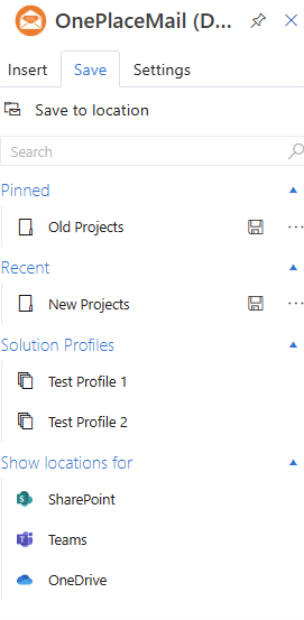
When composing or replying to an email, you can click the OnePlaceMail App 'Insert From SharePoint' icon to find and set a filing location from the 'Save' tab.
-
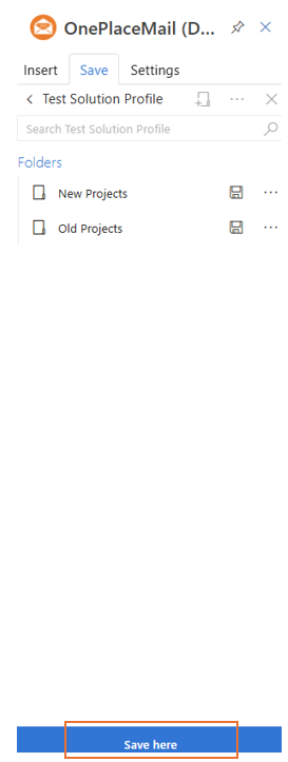
Navigate to the location you want to save the new email to on sending it, and click 'Save here'.
-
This will set the filing location and the new email will be filed to that location when you send it.
To reset the filing location and any custom content type properties, you can click the 'Change location' button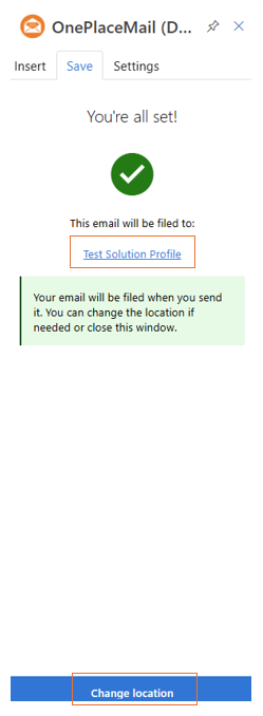
'Send and Save' prompt reminder
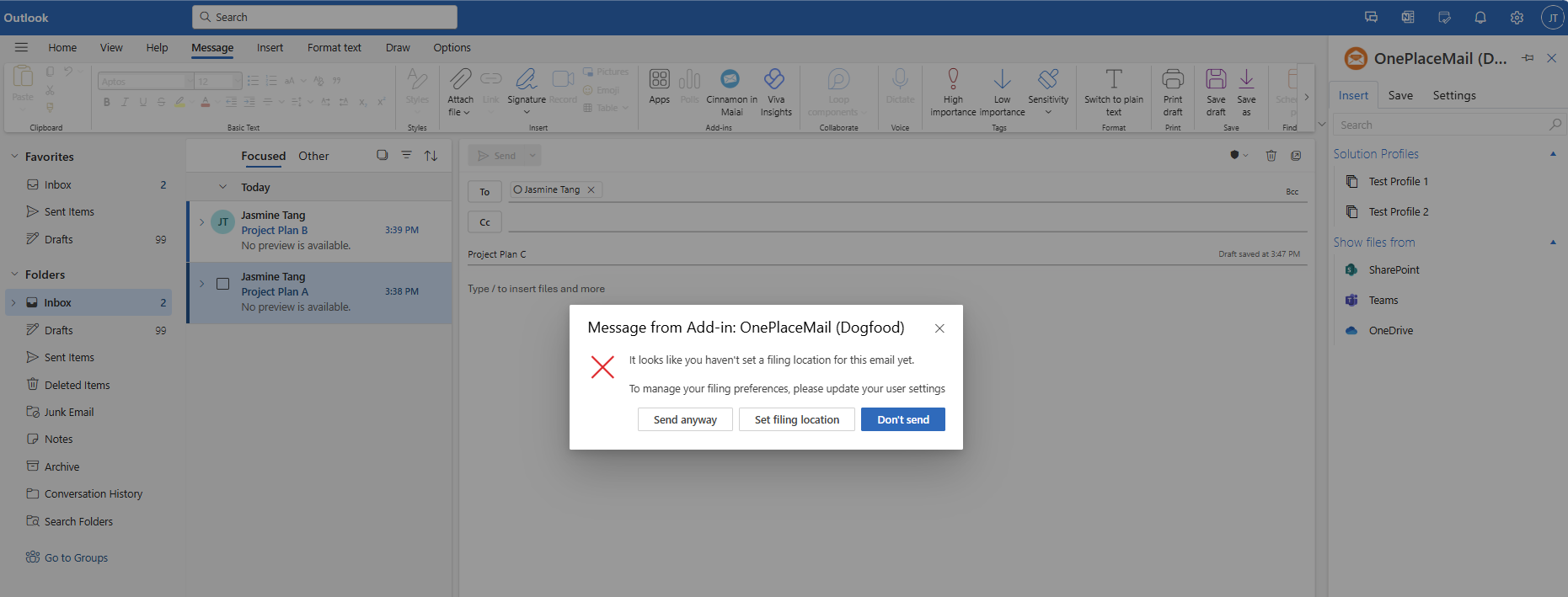
The OnePlaceMail App will automatically prompt if a filing location is not sent on an email being sent.
In the user's Settings, they can enable or disable the prompt that remind them to set a filing location for composed emails when they click sent. If it is disabled, and no filing location has been set, then the email will just be sent and not filed.
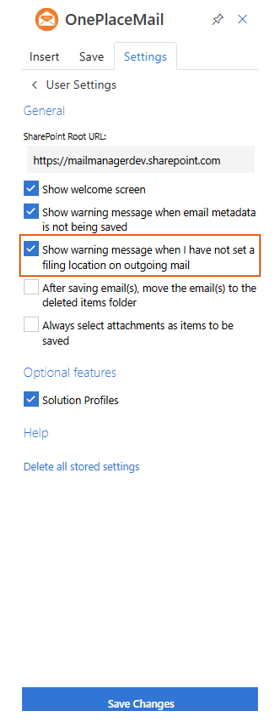
When the user clicks the Send button for a composed email, the smart alert dialog will be prompted only under the following conditions:
• If the ‘Show warning message when I have not set a filing location on outgoing mail’ setting is enabled (default).
• If a filing location is not set.
-
When the user clicks on the 'Send Anyway' button, the email will be sent as usual without being filed to a location.
-
When the user clicks on the 'Set filing location' button:
-
The task pane will open up the OnePlaceMail 'Save' tab for the user to proceed with setting the filing location.
-
-
Clicking 'Don't Send' will close the smart alert dialog.
